1. Get a Pet Egg
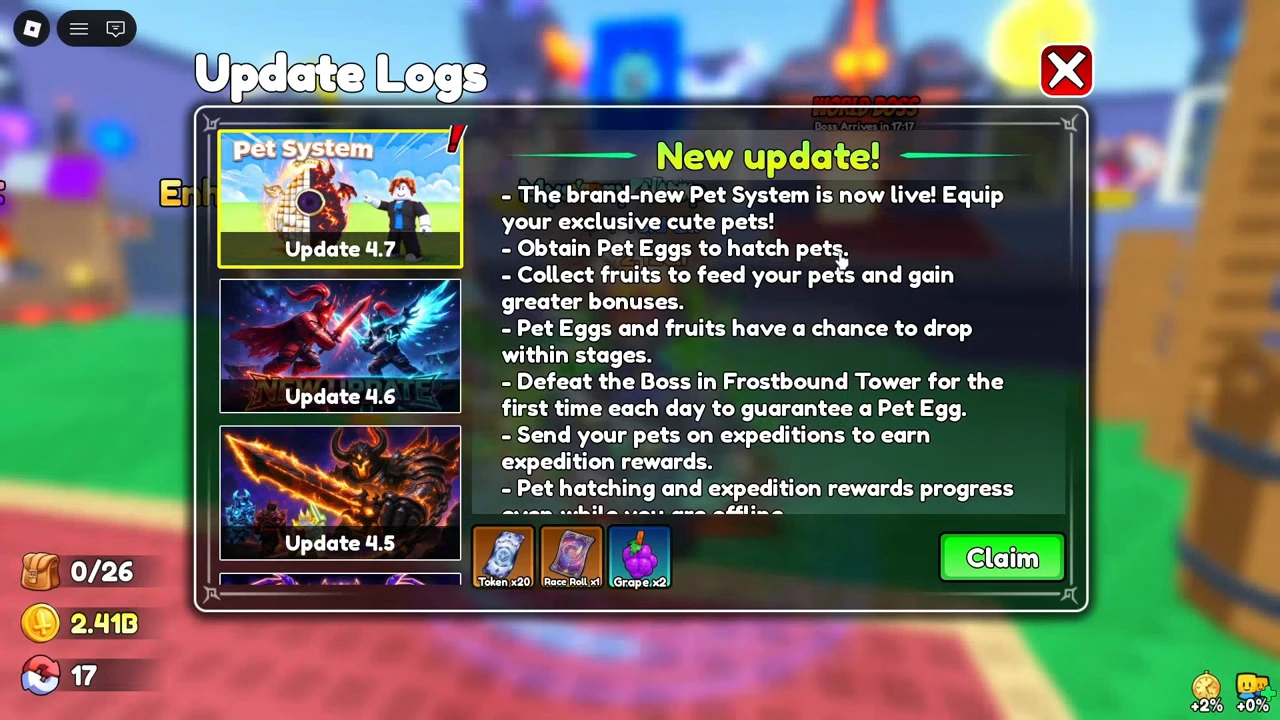
The in-game Update 4.7 / Pet System log shown at 1:05 gives two ways to obtain eggs: Pet Eggs and fruit have a chance to drop within stages, and the first Frostbound Tower Boss defeat each day guarantees a Pet Egg. That daily guarantee is the developer's recorded announcement; this site has not tested the reset or measured drop rates.
Take the hub stairs to the tower portal. In the round selector, choose a range and read the egg name under Possible Drop. The yellow Start button shows the cost of one ticket. GHPlayz's October 14 recording shows two different eggs:
- Rounds 1–5: the menu labels Star Egg First Clear. In NerdsChalk's October 28 screenshots, the selected Star Egg has a 03:00 hatch timer. The player opens the ready egg at the hub and gets Bunky (Rare) in that run.
- Rounds 21–25: the selected range at 2:56 lists Little Crown Egg. The round 25 reward screen shows one egg received, followed by the tower settlement at 3:44. That egg appears in Hatch with an 08:00 timer.
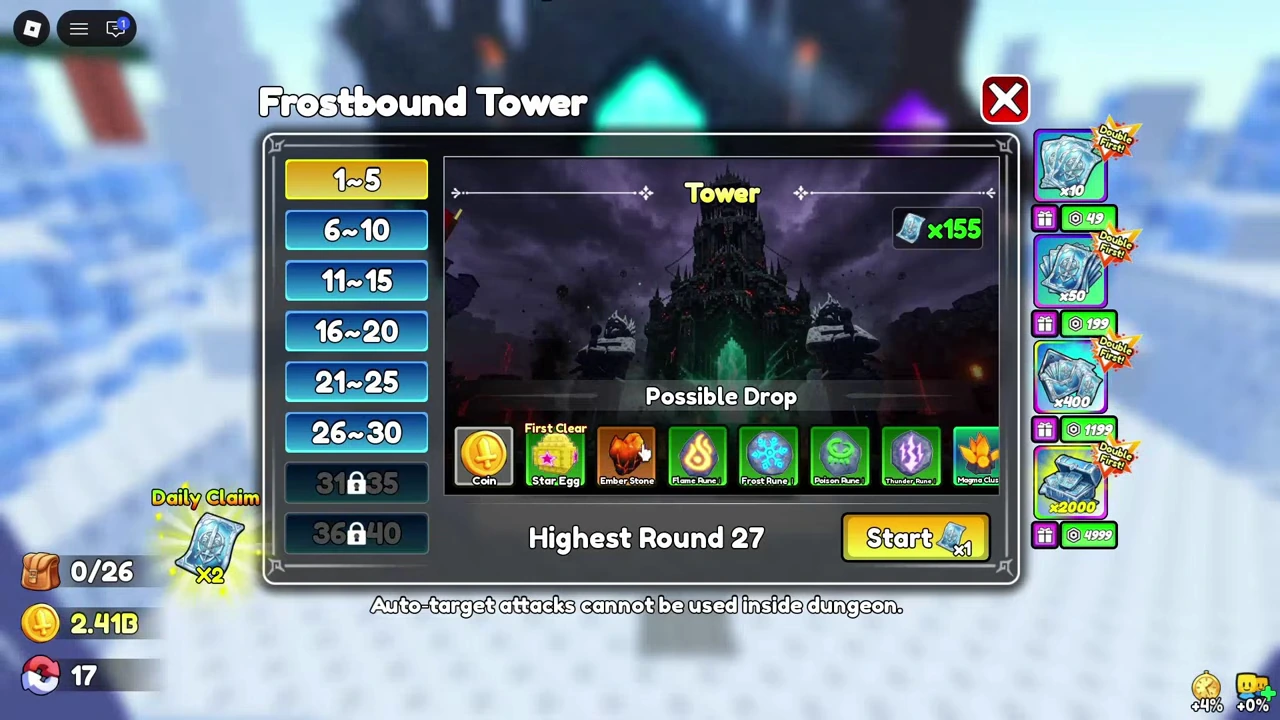
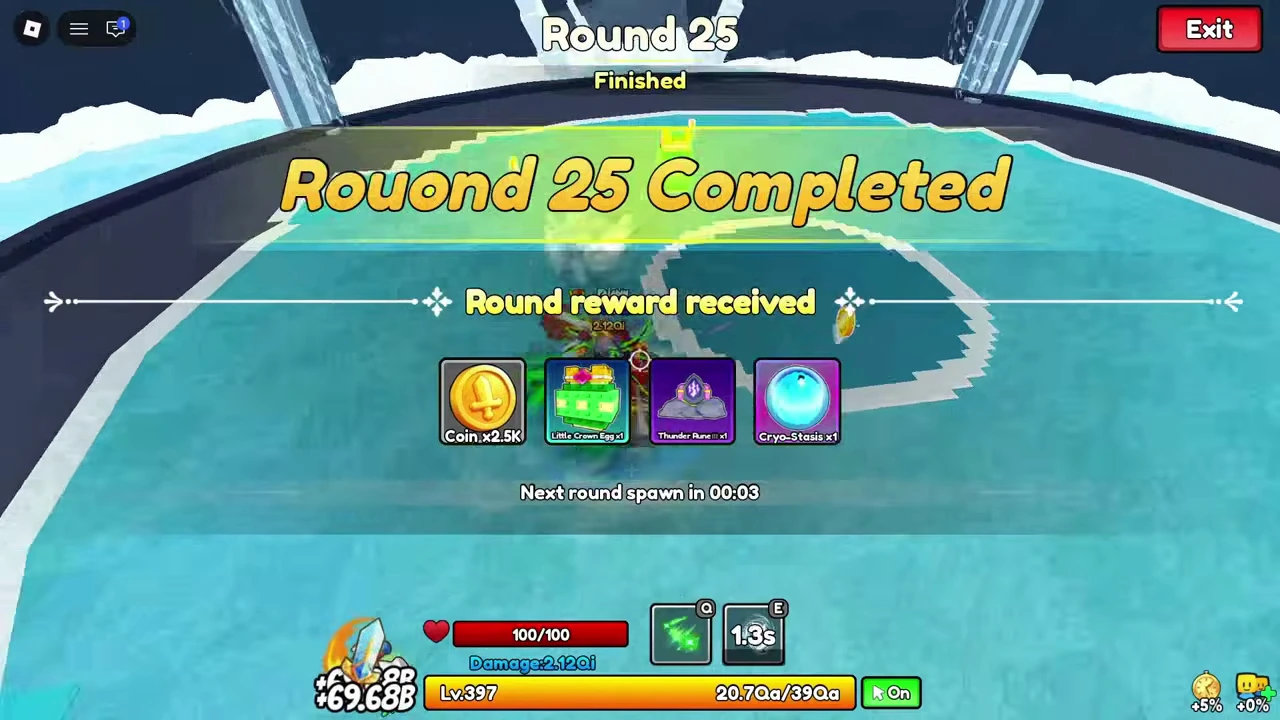
“First Clear” is the label in the tower menu. The daily boss egg announcement, visible at 1:05, does not specify when that label resets.
2. Start hatching, then open the ready egg
- Open the Pets interface in the hub.The October 14 recording uses the Pets booth beside the “Hatch Egg” sign. The in-game Update 4.8 log shown in GHPlayz's October 17 video announces a one-click Pet button on the left sidebar; the button is visible later in that recording. Choose the Hatch tab after opening the interface.
- Select an egg and press Hatch.At 3:55, the creator selects a Little Crown Egg. Its displayed timer is 08:00; after Hatch, it moves into a hatching slot and the timer counts down. This is the timer on that egg, not a duration established for every egg.
- Wait for Ready, then select the egg.A completion notice appears later. At 7:16 the Hatch slot reads Ready!; selecting the egg leads to a Beak / Rare reveal. Return to the Pet tab to inspect it.
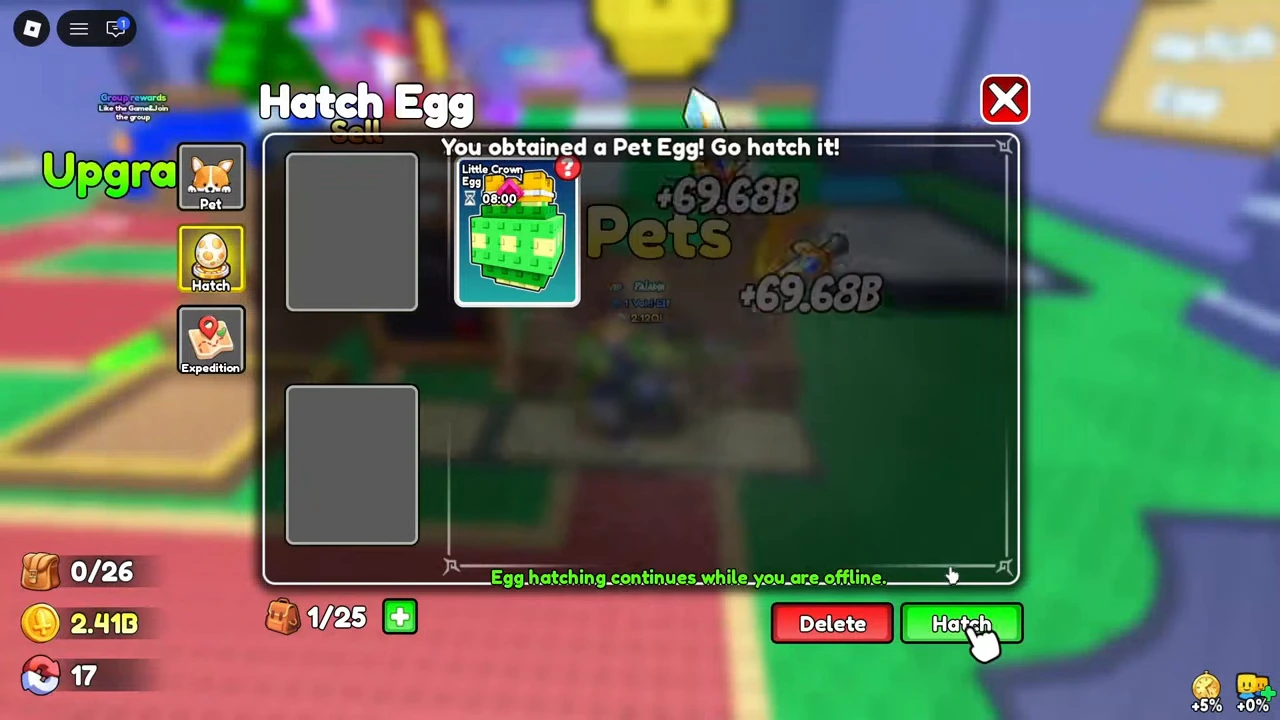
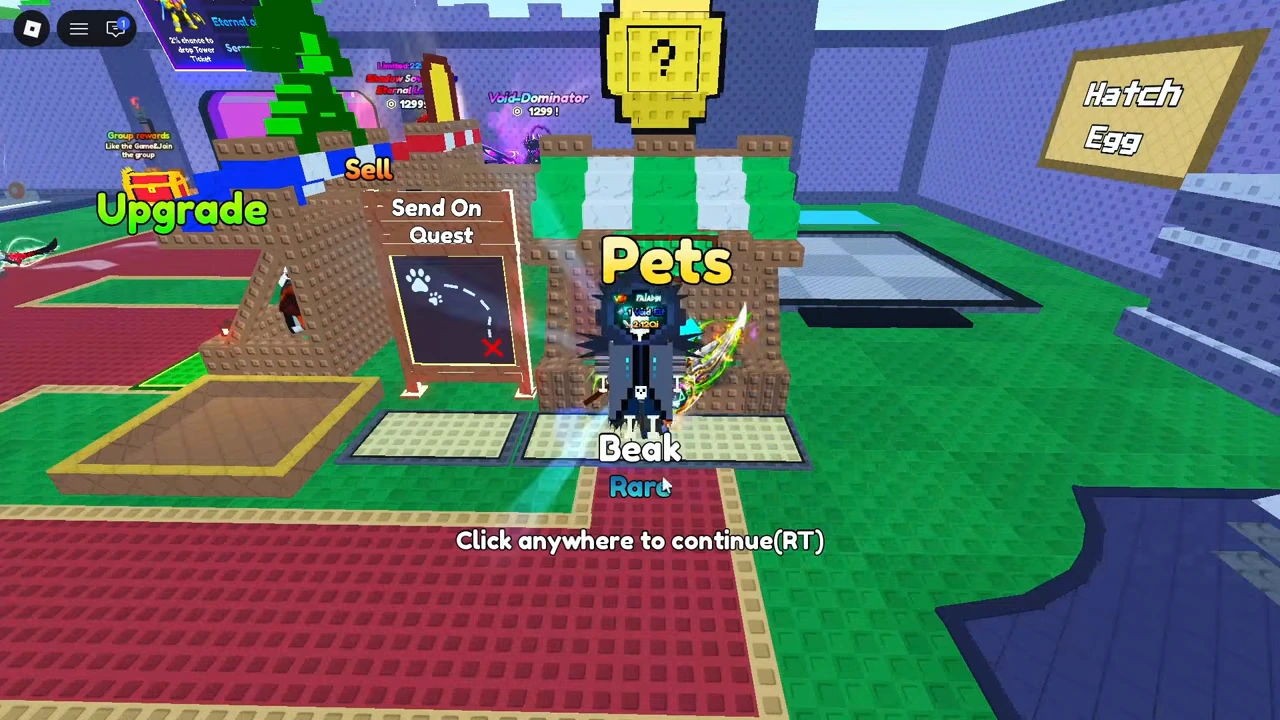
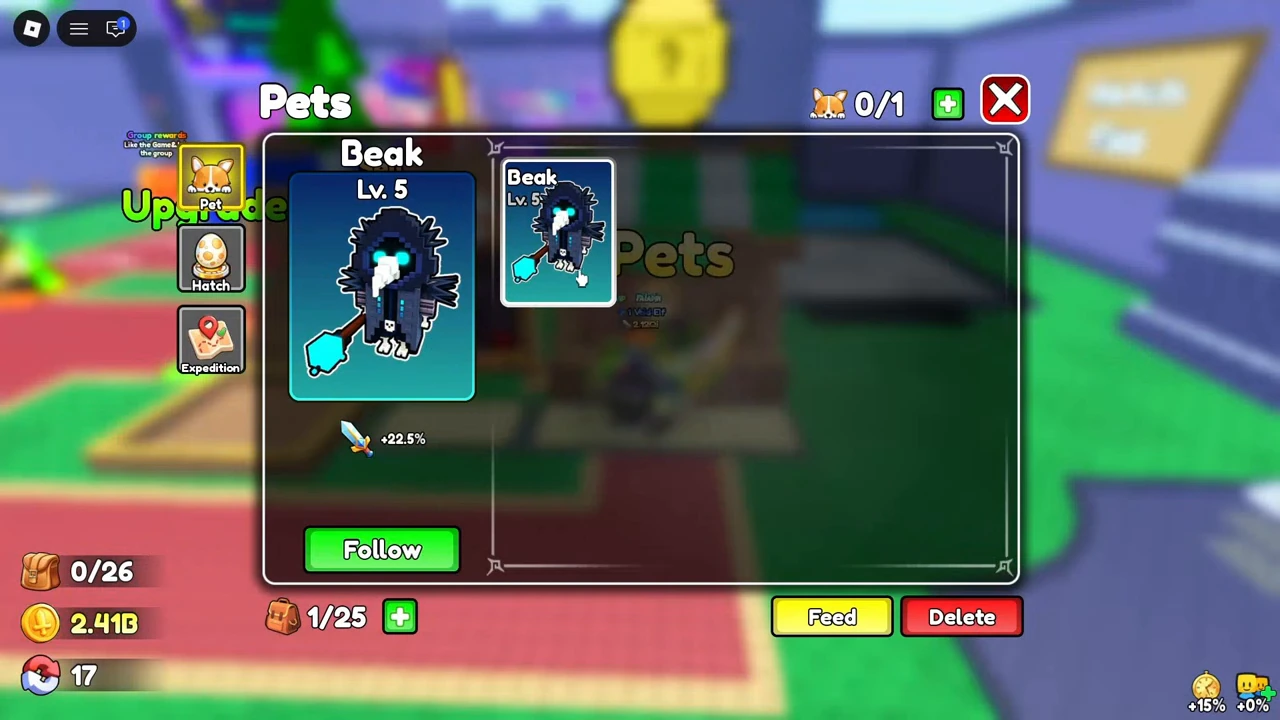
The Hatch screen says egg hatching continues while offline. That is a UI statement, not an offline test here. The video is edited: the gap between its timestamps cannot be used to calculate real hatch time. In the Pet tab, the selected pet has Follow / Unfollow controls; the button changes with its current following state.
3. Feed fruit and check the resulting bonus
Select a pet in the Pet tab and press Feed. Choose the food quantities, read the level and Boost preview, then press Feed to apply the selection. The update log identifies stage drops as a source of fruit.
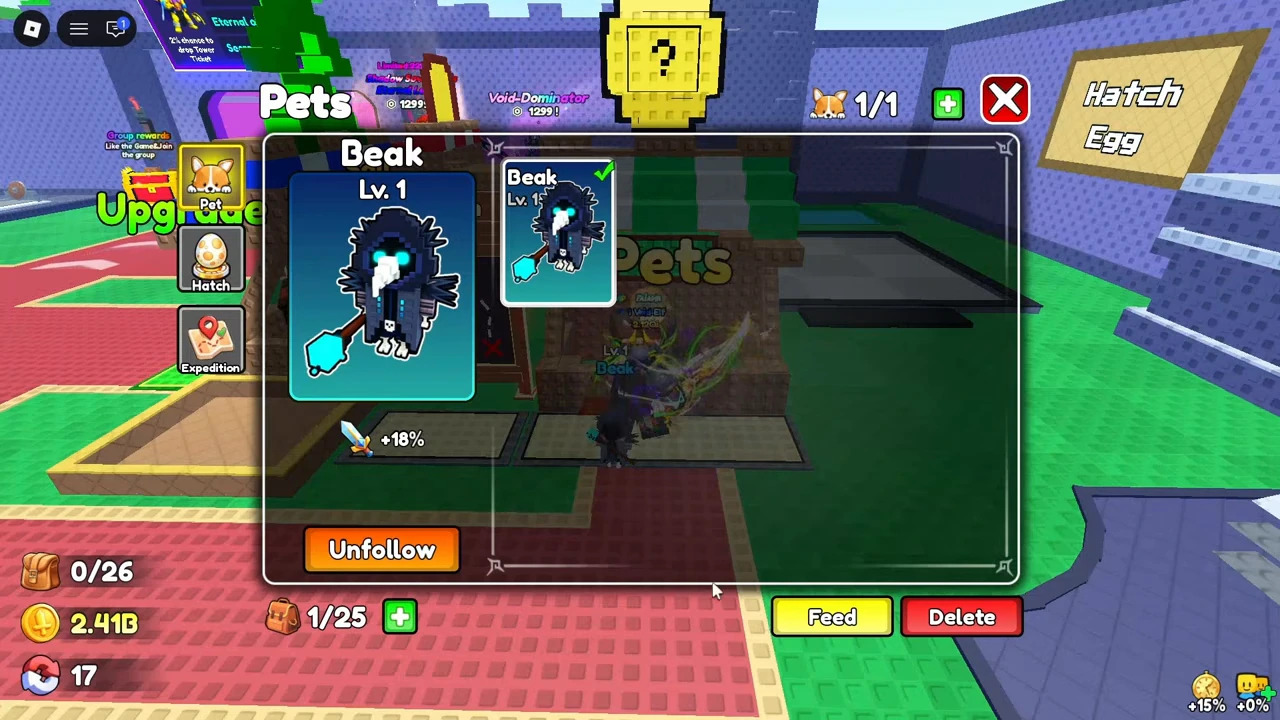
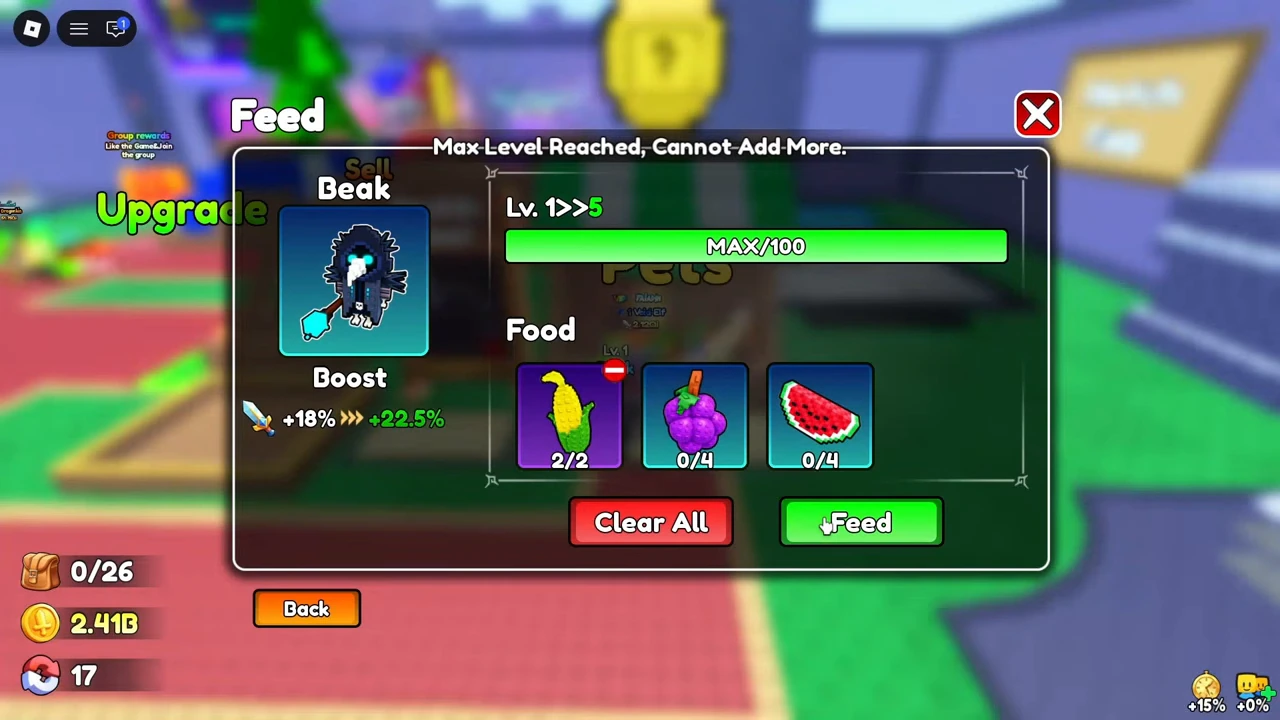
This supplies one feeding example. It does not establish a universal growth formula, that two corn give every pet the same result, or a level cap for all pets. Use your selected pet's own preview before spending food.
4. Dispatch a pet on an expedition
Open Expedition and check the red ? beside your pet before choosing Dispatch. In GHPlayz's October 14 recording, Beak's Probability Details panel shows a coin icon marked ×50K with 82.4% underneath. The Receive row is still empty. After dispatch, Beak's button changes to Recall and its timer starts at 12:00:00.
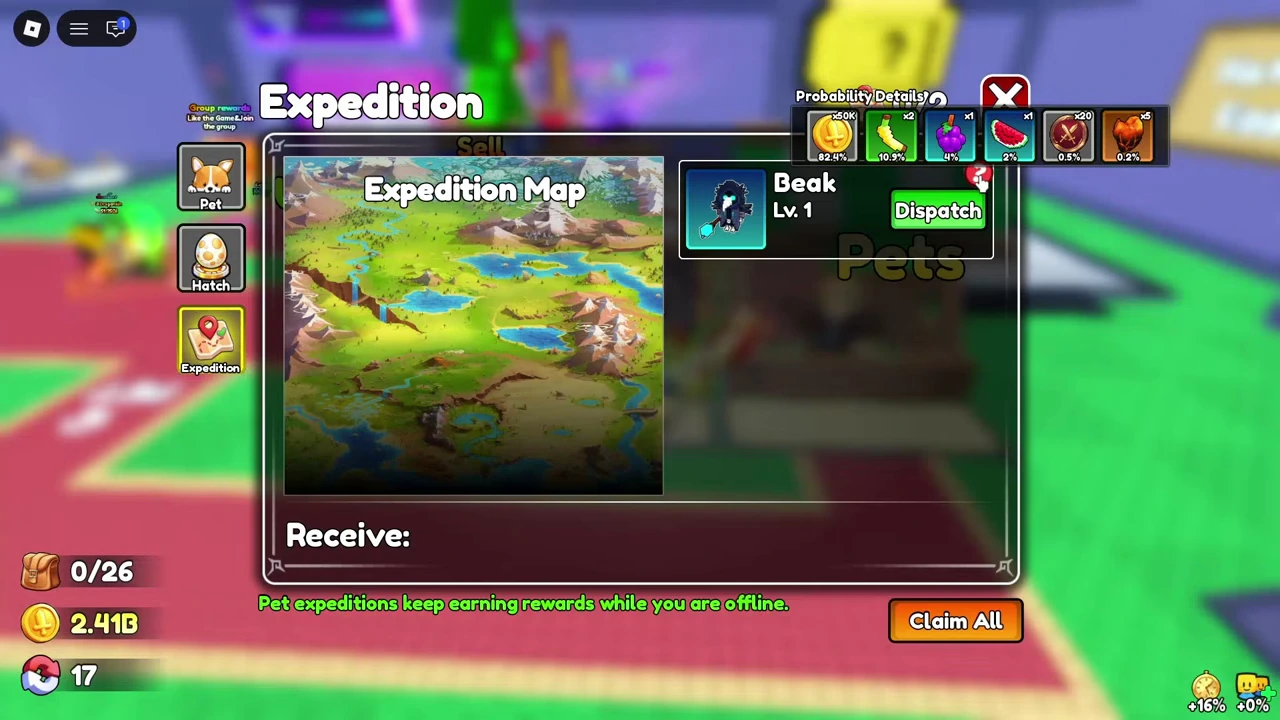
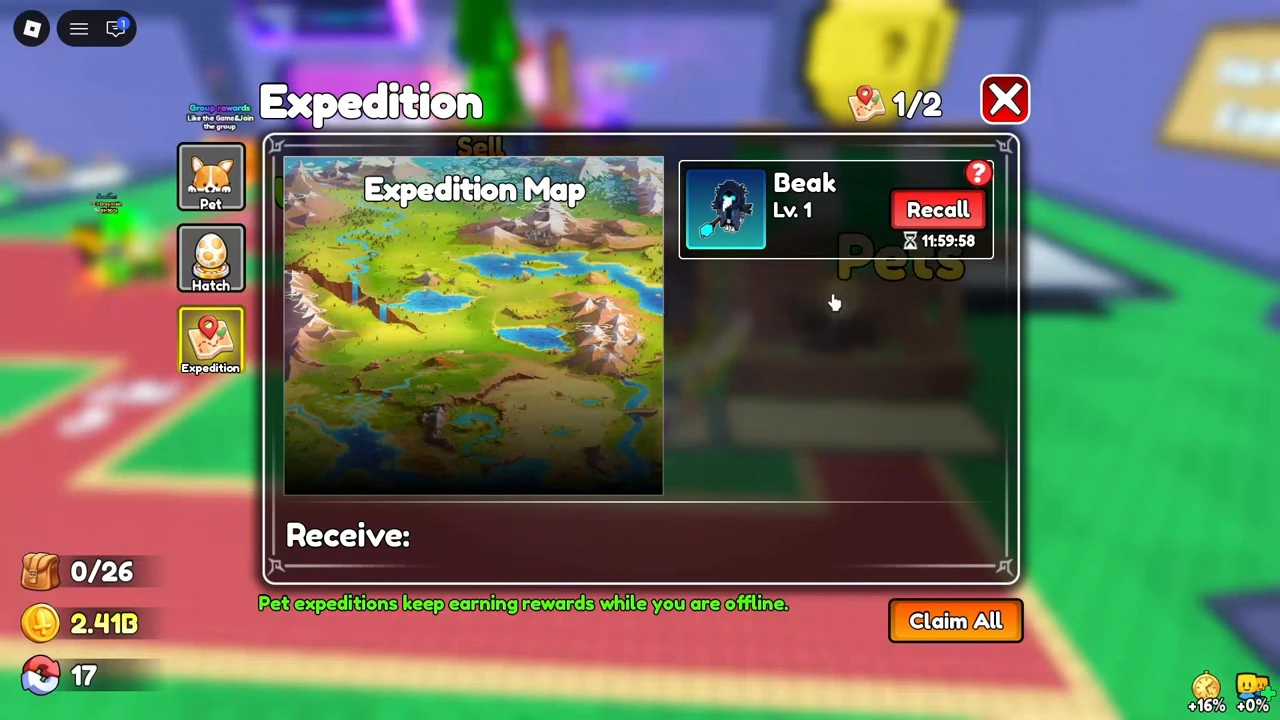
The menu says expeditions keep earning rewards while offline. Offline collection and the result of recalling early are still unverified. Check the preview for your own pet: the Expedition screen labels Beak Lv.1 even though its Pet tab shows Lv.5.
Read Receive and Claim All separately from the pet's status
If a pet's button says Full, check the expedition counter before recalling a pet. In NerdsChalk's November 6 expedition screenshot, the counter reads 2/2. Two rows show Recall with running timers, while a third pet shows Full. The same screen displays one Cherry and 115,000 Coins under Receive. The screenshot ends before collection.
Check the pet list and the reward area separately. In BardakVgolovi2's recording at 6:15, the Expedition screen shows:
- 0/2 at the top and Dispatch beside the listed pets. Compare this with the Recall button and timer in the active-expedition example above.
- Banana and gold icons under Receive. These are displayed reward information; the icons alone do not confirm that items have reached the inventory.
- Claim All below the panel. The control is visible, but this sequence ends with the creator closing the window using X around 6:19–6:20.
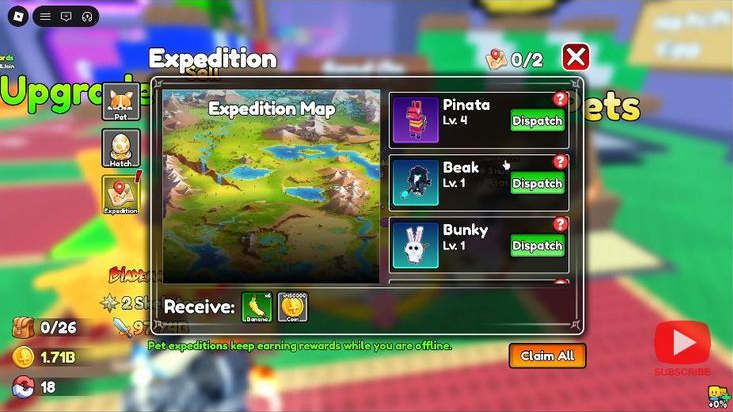
Source uploaded October 15, 2026 (UTC); recording date and build unknown. This view does not verify a successful Claim All action, partial claims, early Recall rewards or offline settlement. The video's “One Hour Later” and “One Day Later” edit cards cannot establish an earning rate or offline duration.
Compare the steps with the recording
The official Pet event announces eggs, hatching and growth. The practical steps above come from the recorded screens. They do not supply a complete pet catalog or ranking.
For the separate PET code and its announced reward, use the Loot To Forge codes page. For weapons, return to the recipe index or forging guide.