The Apex: match the name in the game
The ore's name on the recorded inventory is The Apex. “Apex” is the shorthand used in the video and in our recipe table. The examples consume thirteen Apex for a Greatsword preview and four Apex for a Katana preview.
These are counts of the selected material, not four or thirteen distinct ore types. Keep the quantity separate from the number of occupied material slots.
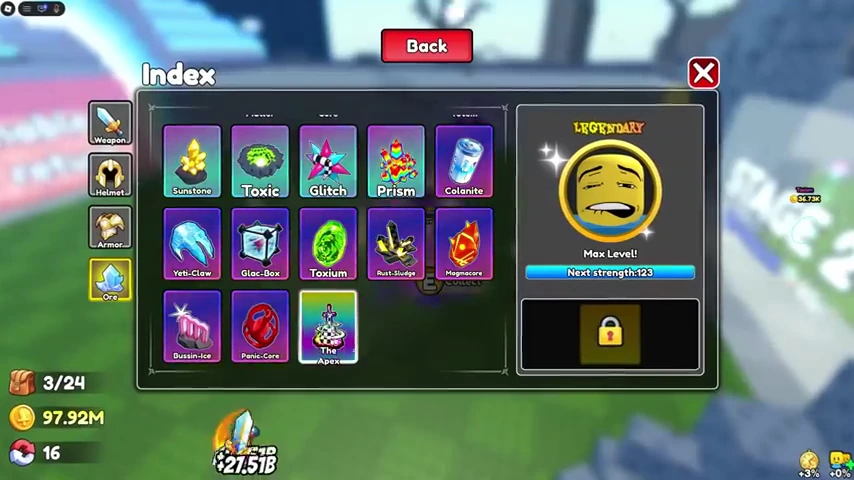
Other names visible in the same Index
Sunstone, Toxic, Glitch, Prism, Toxium, and Panic-Core are also readable in this frame. Their presence in the Index confirms these labels in the recording; it does not establish their drop locations, multipliers, or a recipe that uses them. We have not assigned unverified numbers to them.
Check stage labels as well as the narration
Near 1:27 in Default's video, the player calls out Apex drops; the nearby sign reads Stage 24. The Ore Index is opened immediately afterwards.
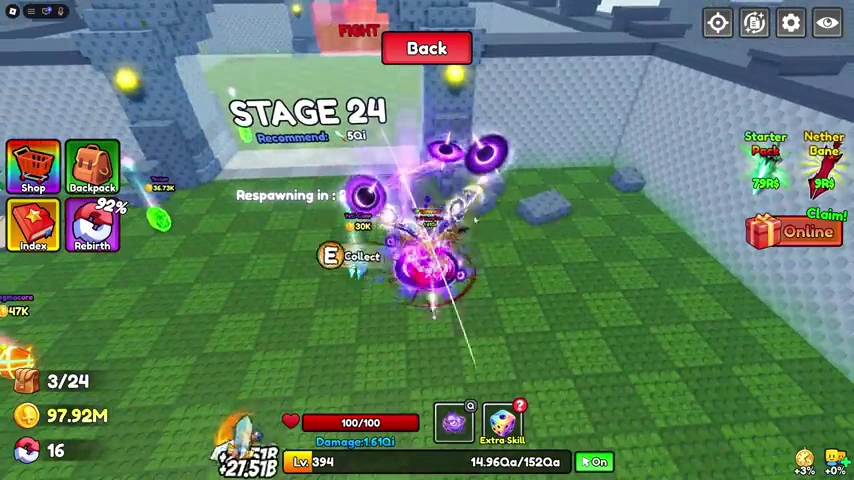
Later, around 3:27, the narrator says Stage 24 while the subsequent collection scene displays Stage 25. That mismatch is a reason to check the current in-game label rather than turn the narration into a precise farming table.
The player is already well into progression. This video does not establish the minimum Power needed to farm these areas, an exclusive source for Apex, or a drop rate. Choose an area you can actually clear and check the drops in your own session.
Check the selected input, not just your inventory
- Find the ore name in the Forge inventory.Do not identify an ore by color alone; several materials have similar icons.
- Check the quantity you put into the craft.The amount in your backpack and the amount selected for the forge are different numbers.
- Read the class Preview after selecting materials.If it does not show the class you wanted, stop and review the input before pressing Forge.
Follow the sword screenshots for the input and reveal, or use the recipe table for a compact comparison.
Why this reference is short
We have not verified every ore's name, multiplier, rarity, and drop location in the current game build. A full material table will be added only when its rows can be checked against the game UI or a dated, legible recording.
Materials and statistics from the separate Roblox game The Forge are not valid evidence for +1 Loot To Forge. If a table looks familiar from that game, confirm the game identity before spending anything.